Before installing @Sign, you must install @Core first. It contains the essential components @Sign depends on — skipping this step will cause an installation error.
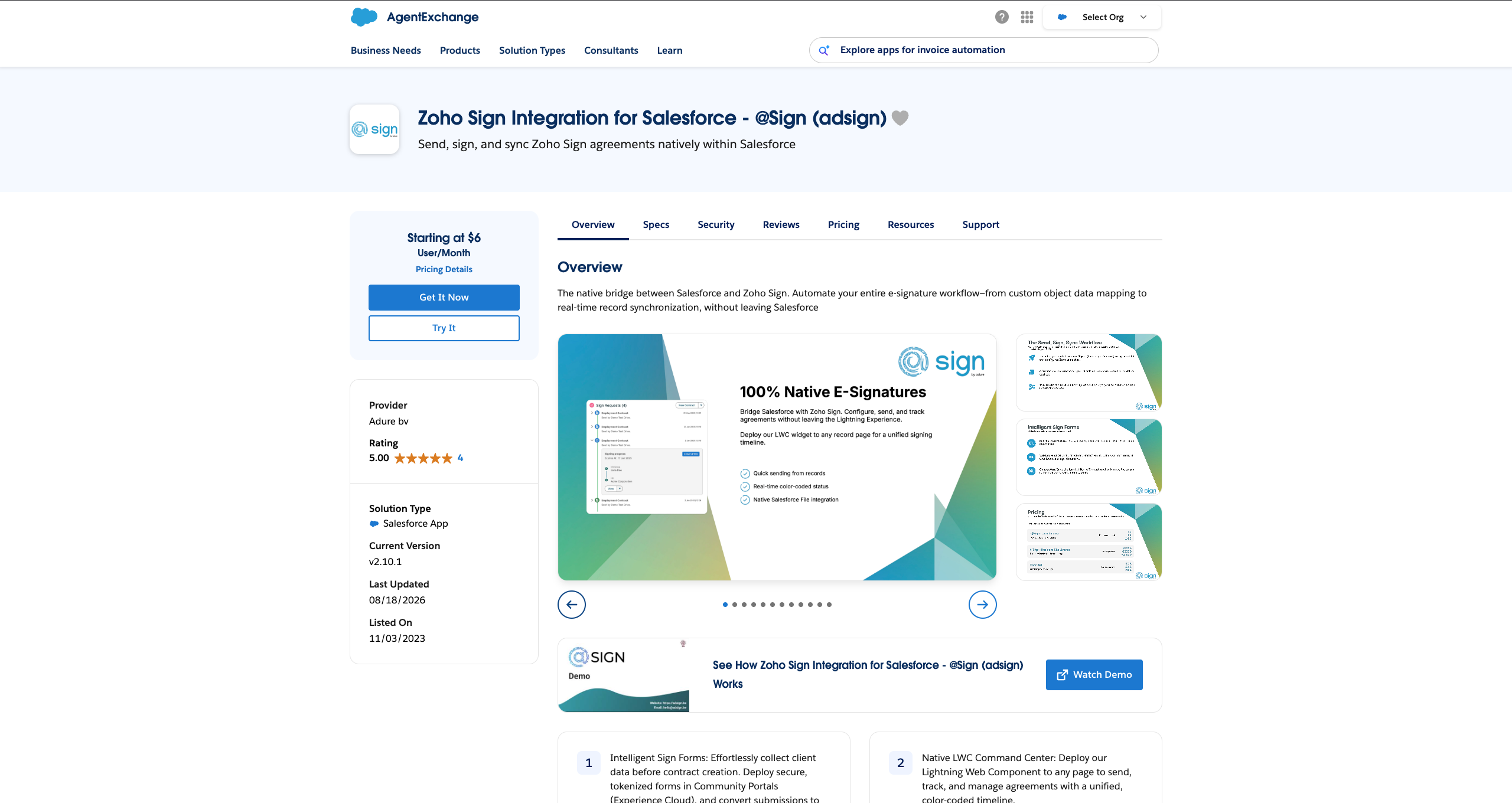
Head over to the Salesforce AppExchange and find the @Sign listing to get started.
Salesforce AppExchange
Click the 'Get It Now' button to begin the installation process.
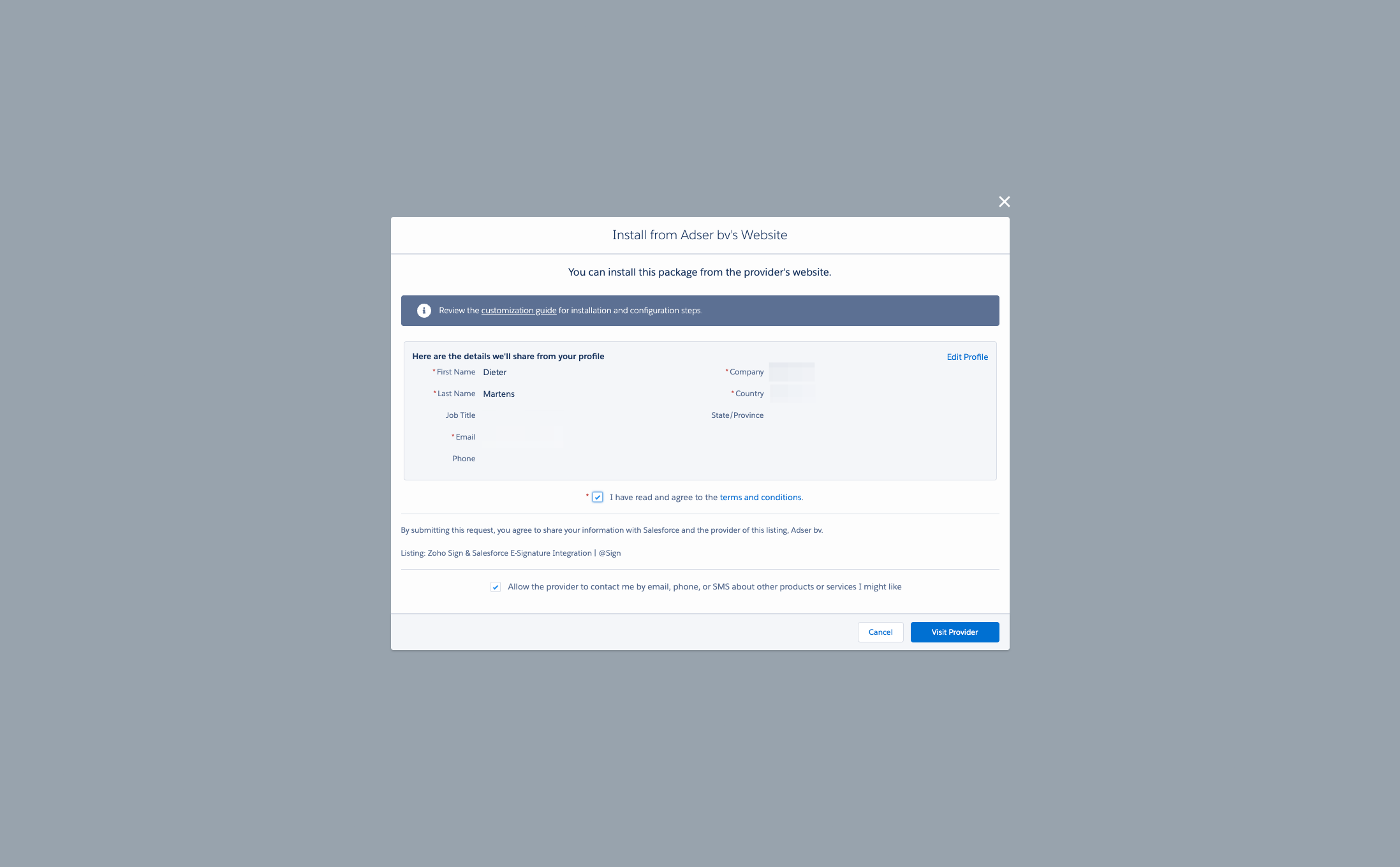
Complete the form and click 'Visit Provider' to be redirected to the @Sign installation page.
Drag to pan
Important: Before installing @Sign, you must install @Core first. It contains the essential components @Sign depends on — skipping this step will cause an installation error.
Install @Core
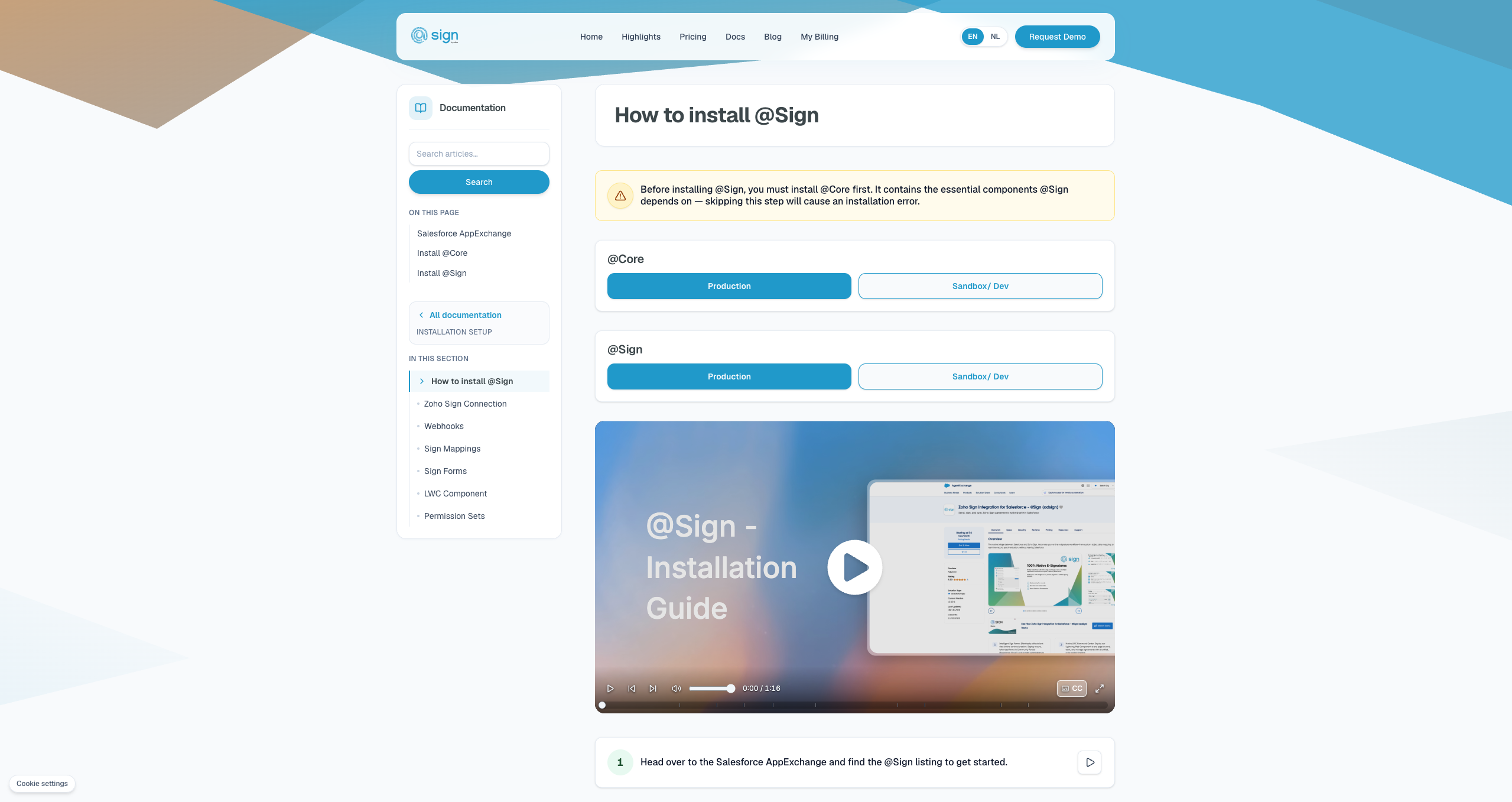
Choose the right installation link for your environment: use the Sandbox link for sandbox, scratch, or partial orgs, and the Production link for production or developer orgs.
Drag to pan
Install @Sign
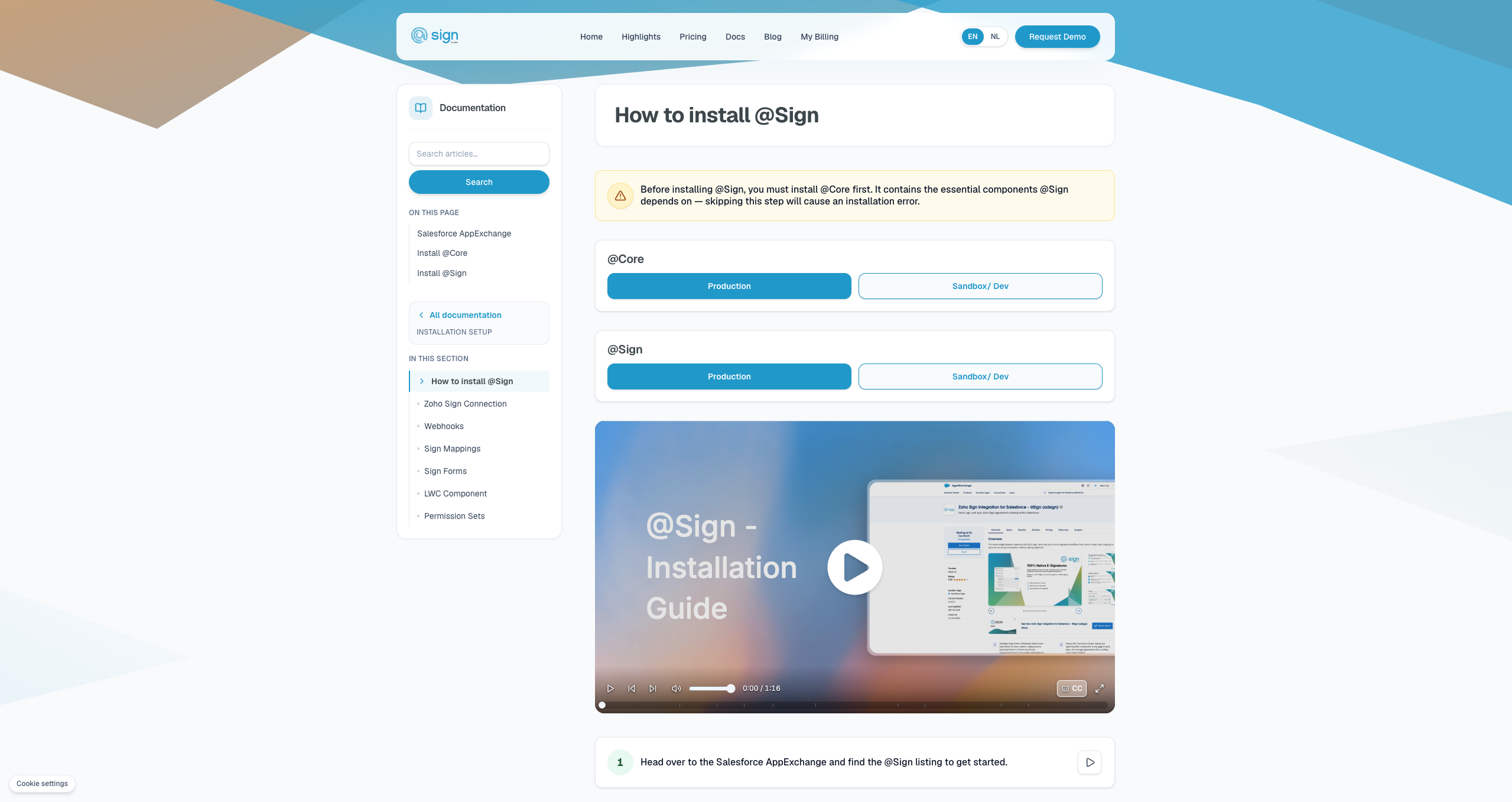
With @Core in place, you're ready to install the @Sign package. Follow the same process and select the link that matches your Salesforce environment.
Drag to pan