The @Sign integration provides a powerful internal editor that allows you to manage Zoho Sign templates directly within Salesforce. While you can still use the native Zoho Sign interface for legacy documents, our built-in editor streamlines your workflow by keeping document design and CRM data in one place.
@Sign Template Editor
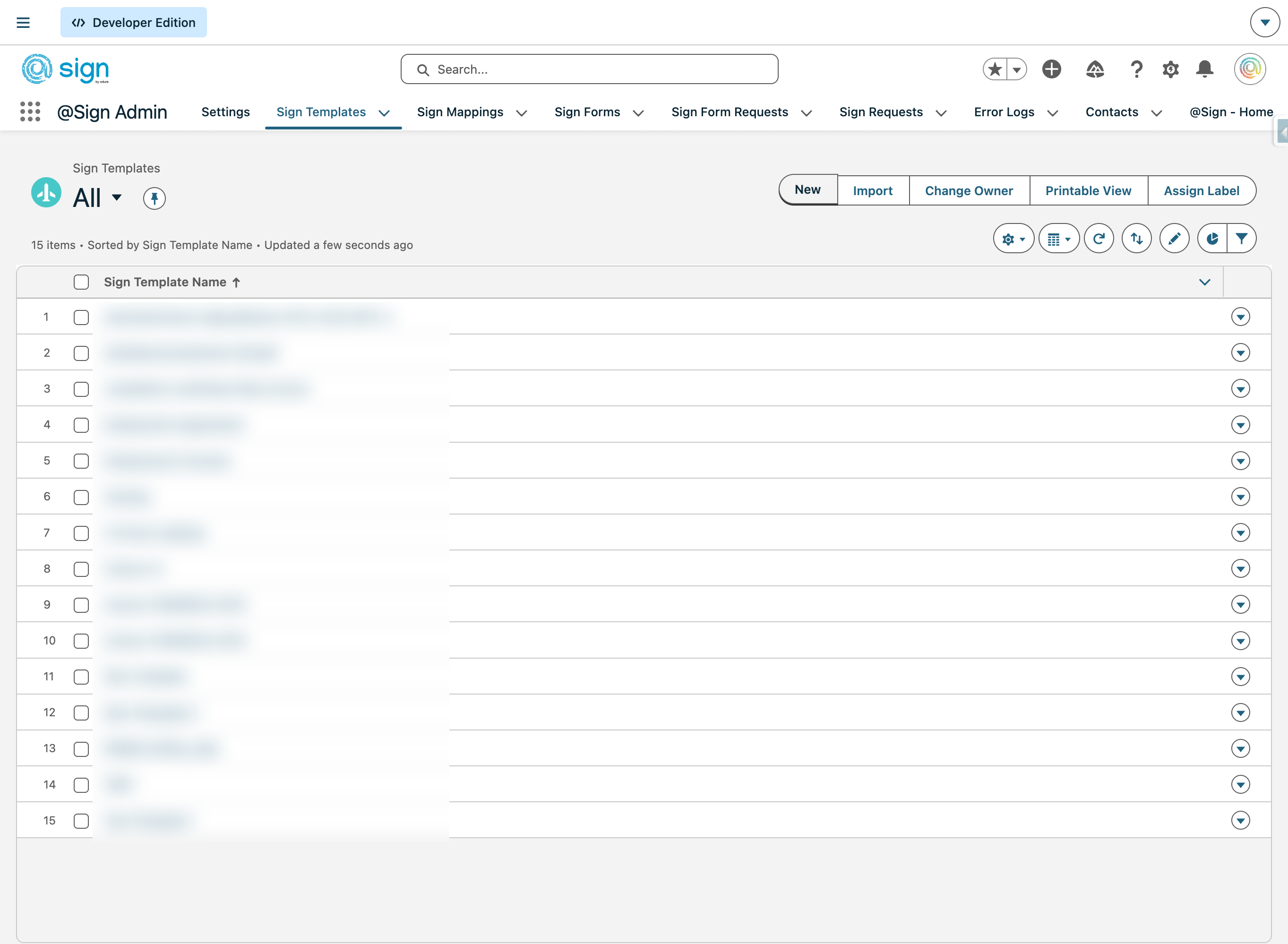
Open the Sign Templates section in your Salesforce @Sign app to manage all your document templates in one place.
Click 'New' to start building a fresh template from scratch.
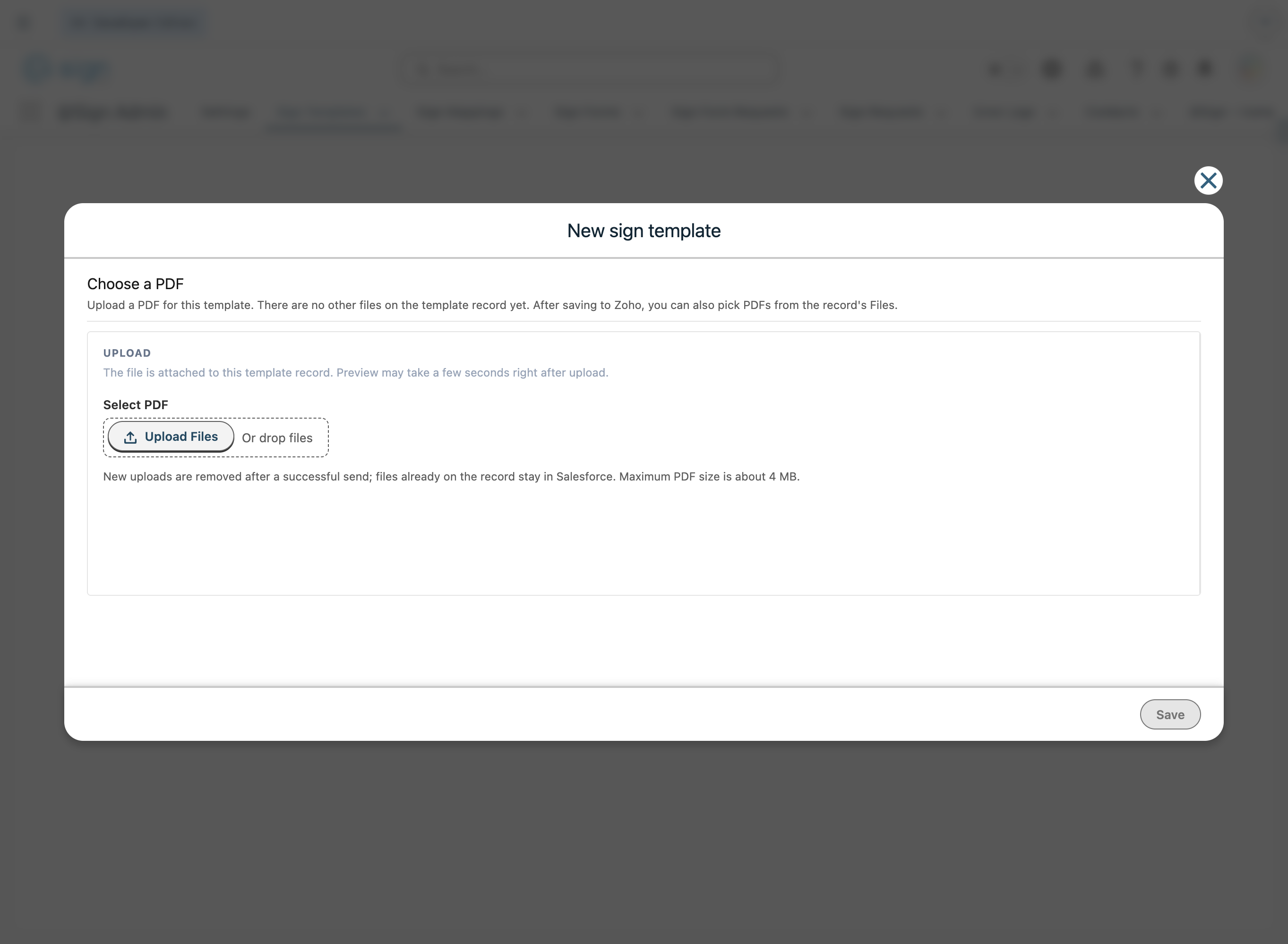
Upload the document you want to use as the base for this template — drag and drop it or browse your files.
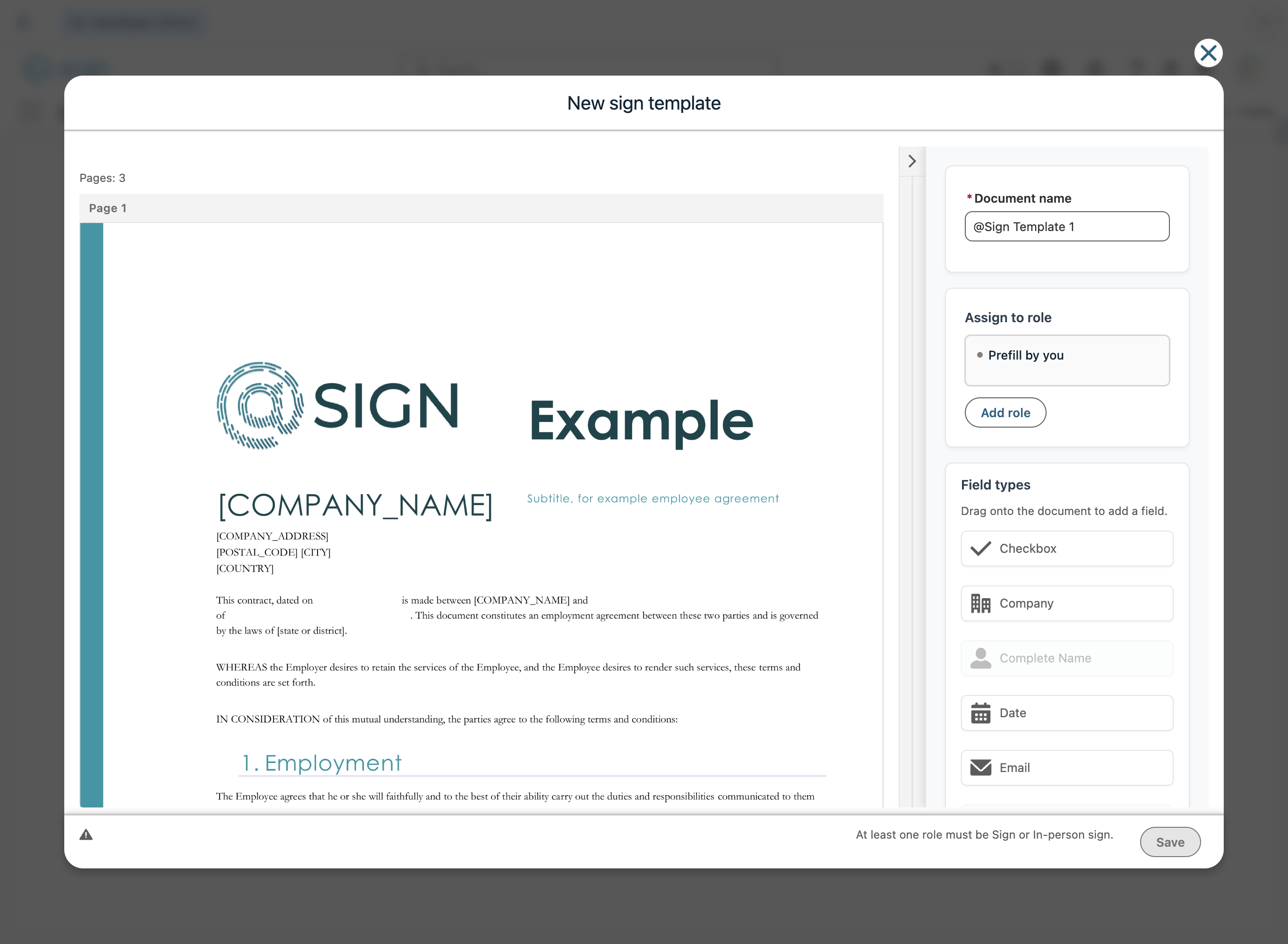
Give your template a clear, recognisable name. By default it's called 'New template', but a descriptive name will make it easier to find later.
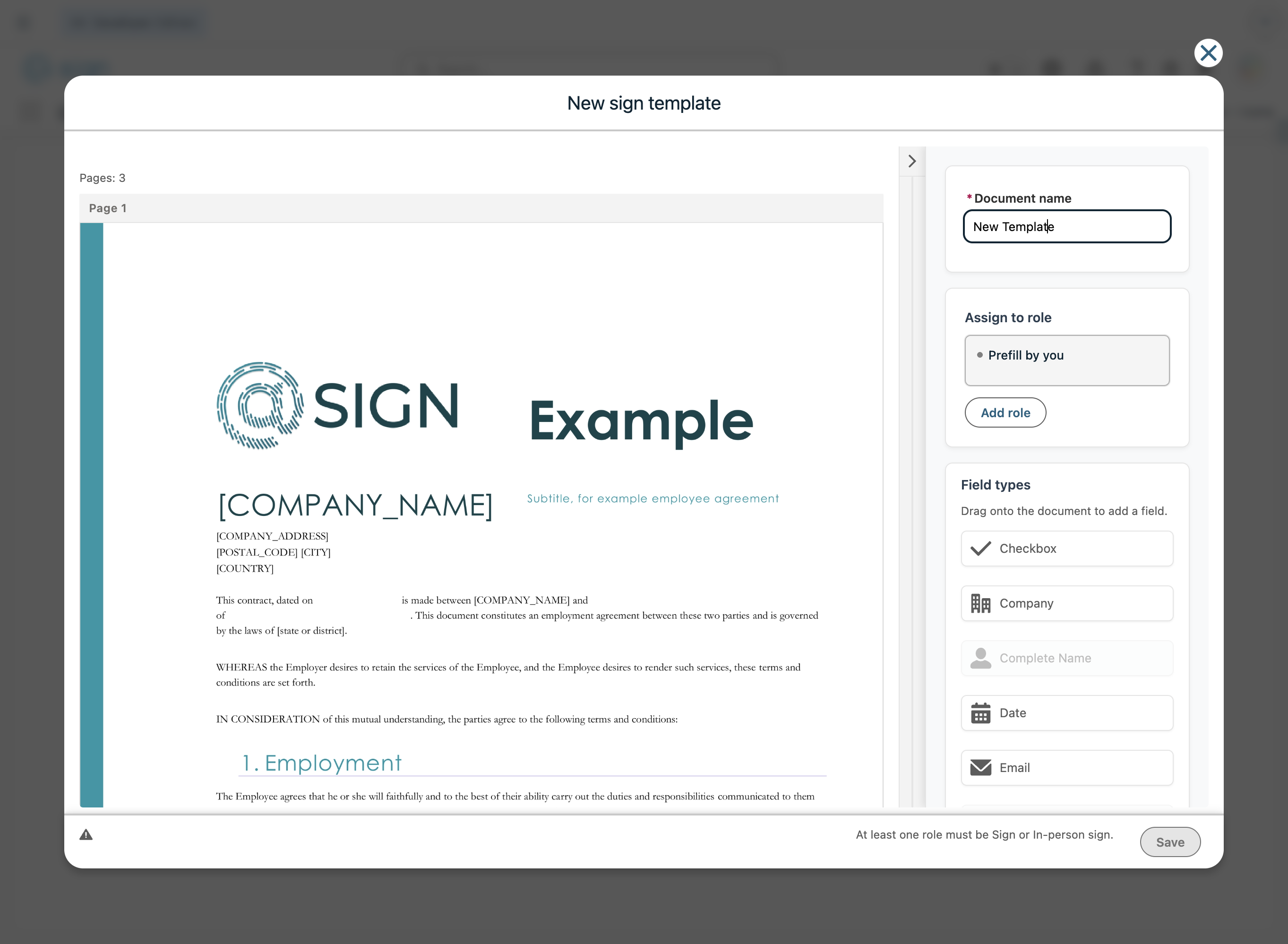
Select a role in the sidebar. Use the 'Add role' button to include additional signers or approvers.
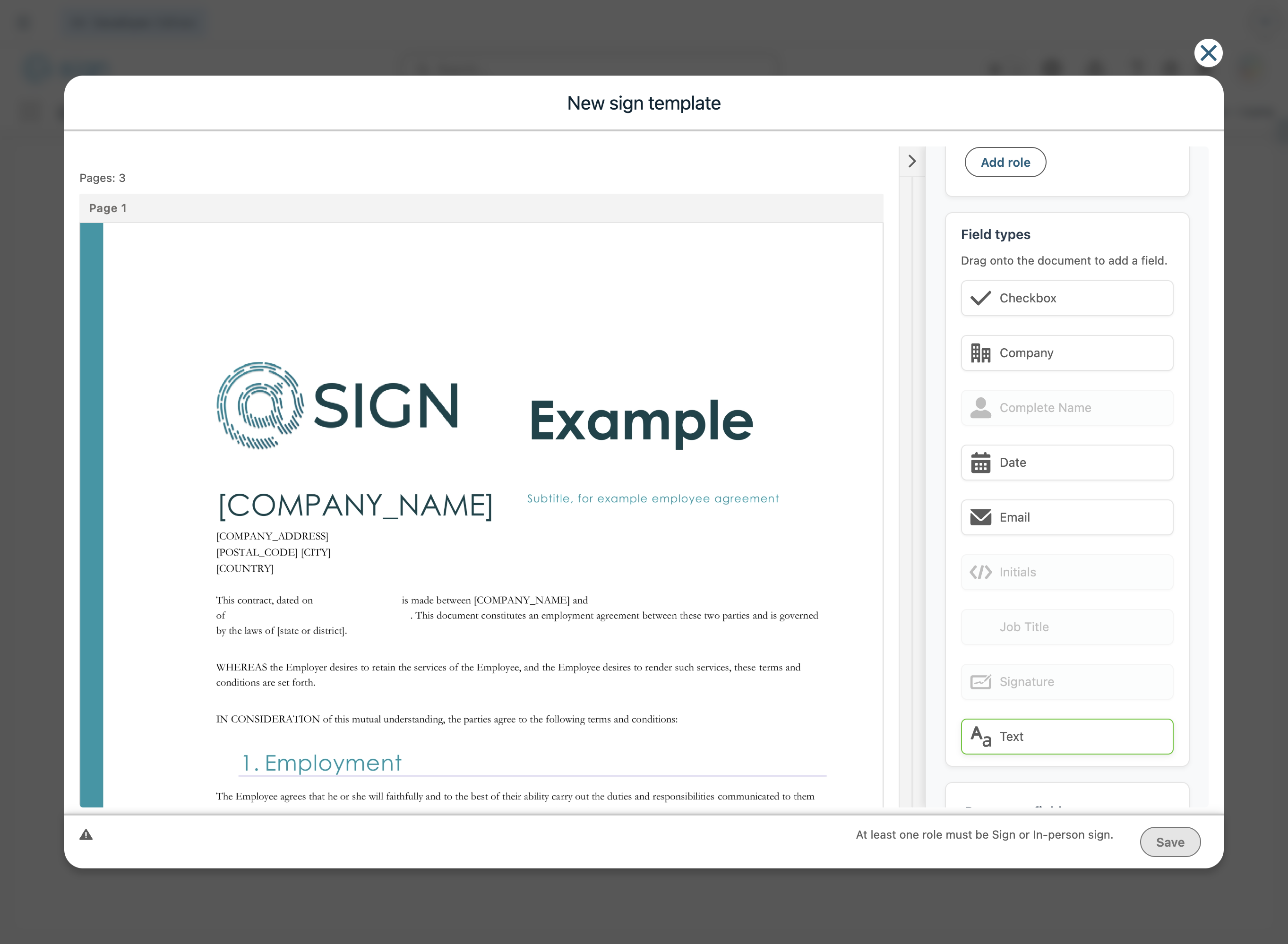
Drag a text field from the sidebar onto the spot in the document where you want the content to appear.
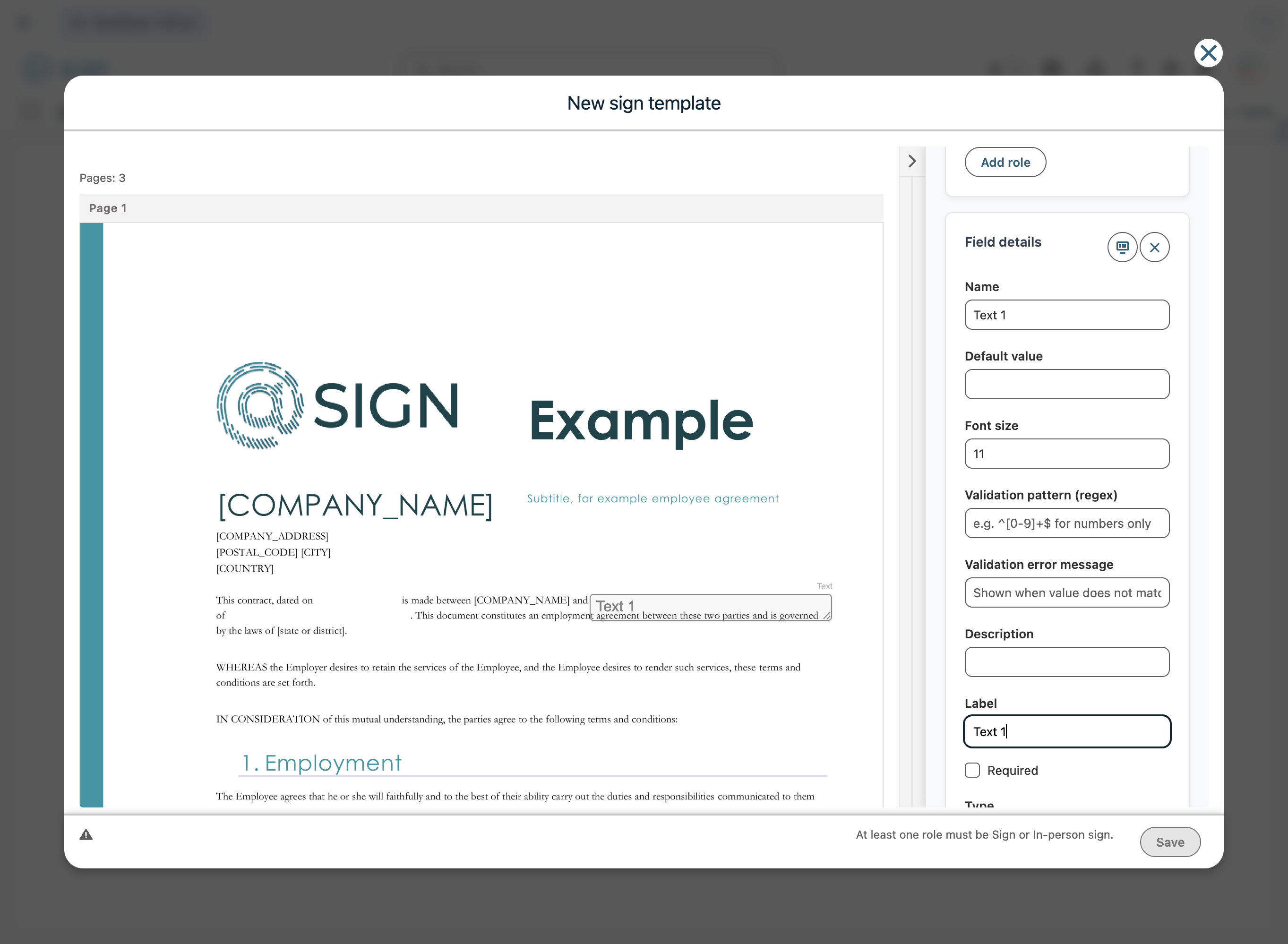
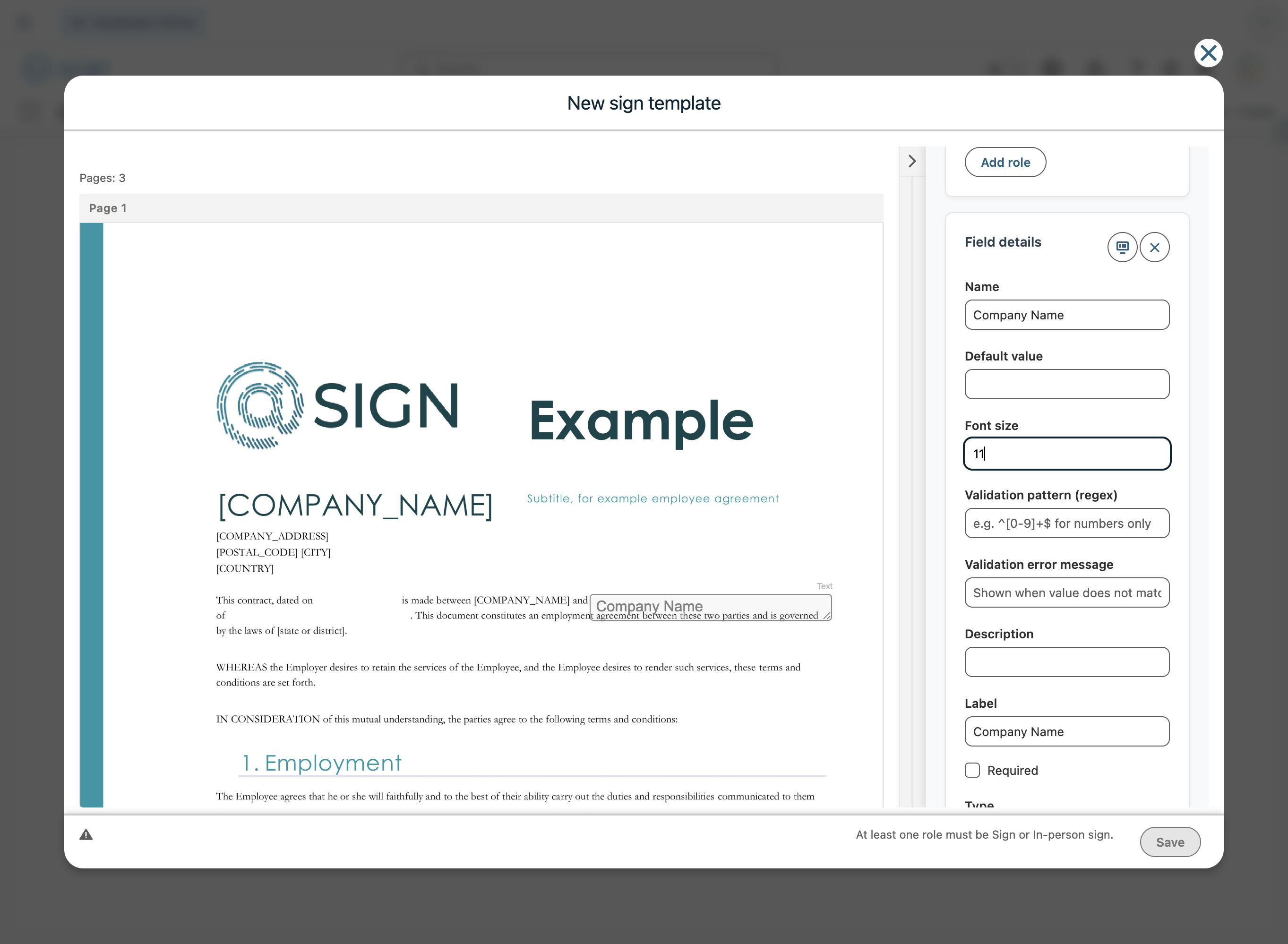
Click on any field to open the 'Field details' panel in the sidebar. Here you can set the field's name, label, and any other options relevant to that field.
Drag to pan
Adjust the font size for the content of this specific field to match the styling of your document.
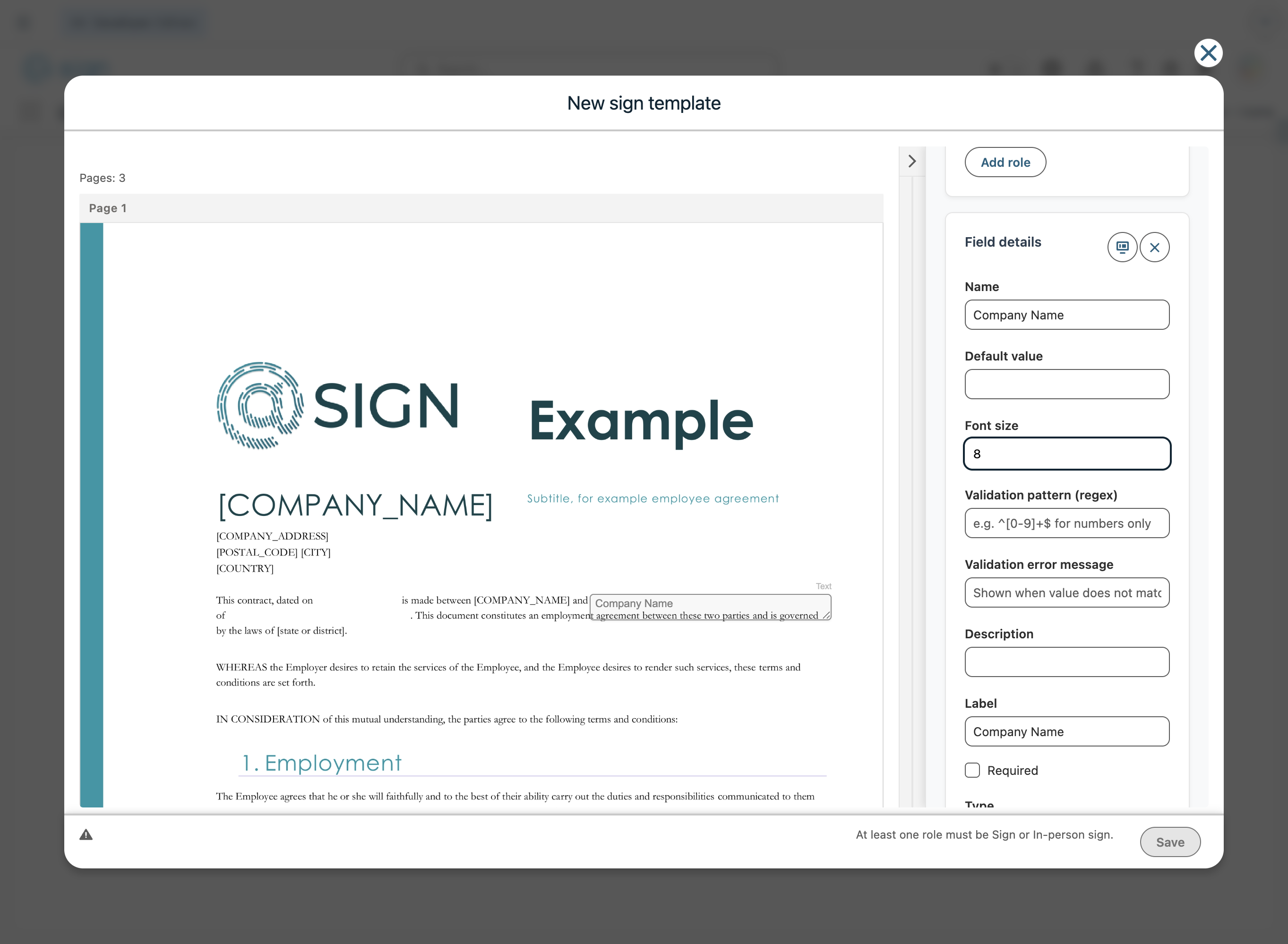
Drag the handle at the bottom-right corner of a field to resize it horizontally or vertically until it fits perfectly.
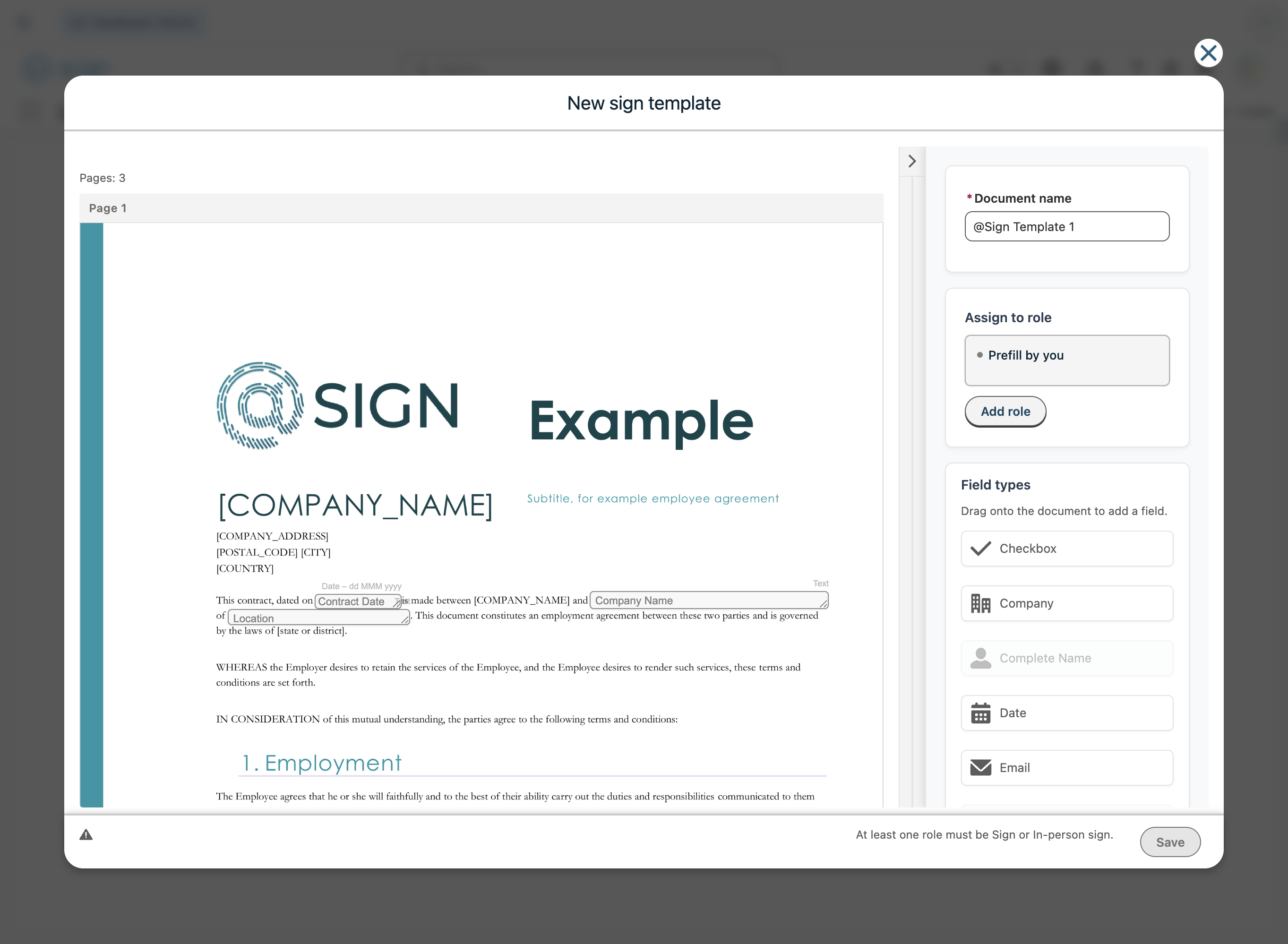
Fields assigned to 'Prefill by you' must be filled in before sending the contract. Fields assigned to other roles are completed/filled by those recipients. Click 'Add role' to create your first signer role.
Fill in the role name (for internal reference), and optionally set a default name and email for this person. Choose what action this role must perform: sign, approve, view, and so on.
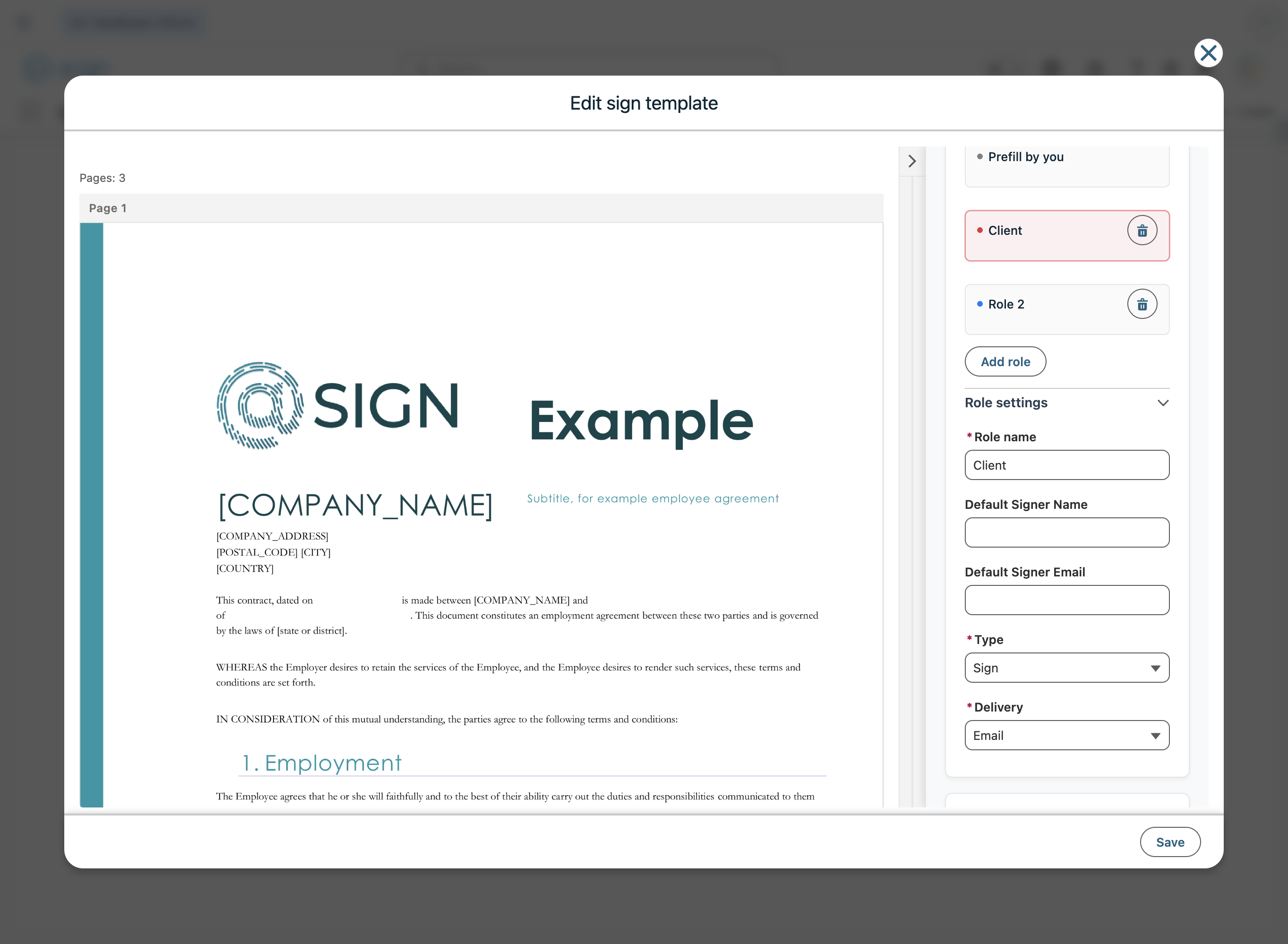
Repeat the process to add more roles. For example, create an 'HR' role if a second person also needs to sign the document.
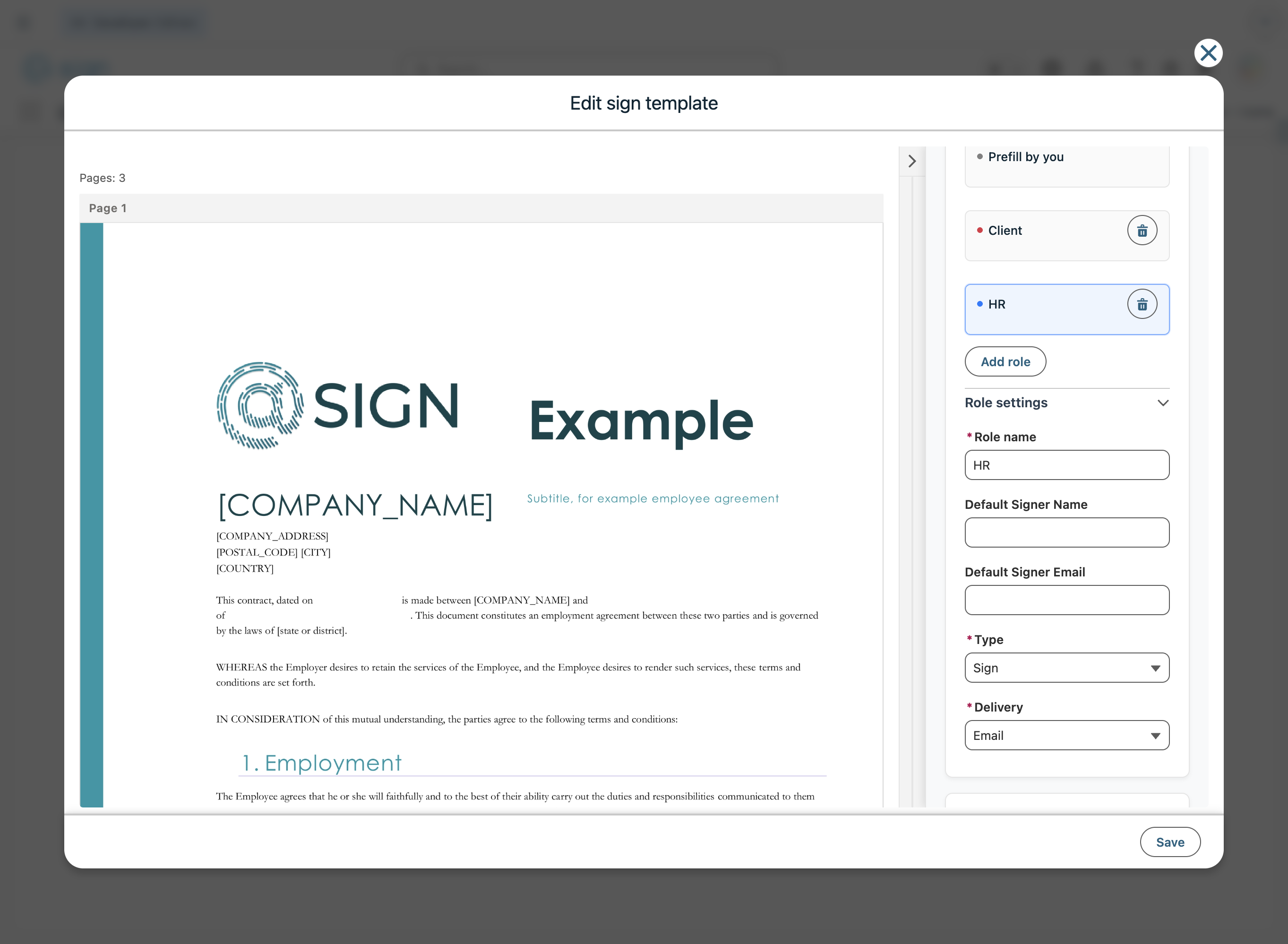
Each role gets its own colour, so fields are easy to distinguish at a glance. Use the field overview at the bottom of the sidebar to navigate quickly between all fields in the document.
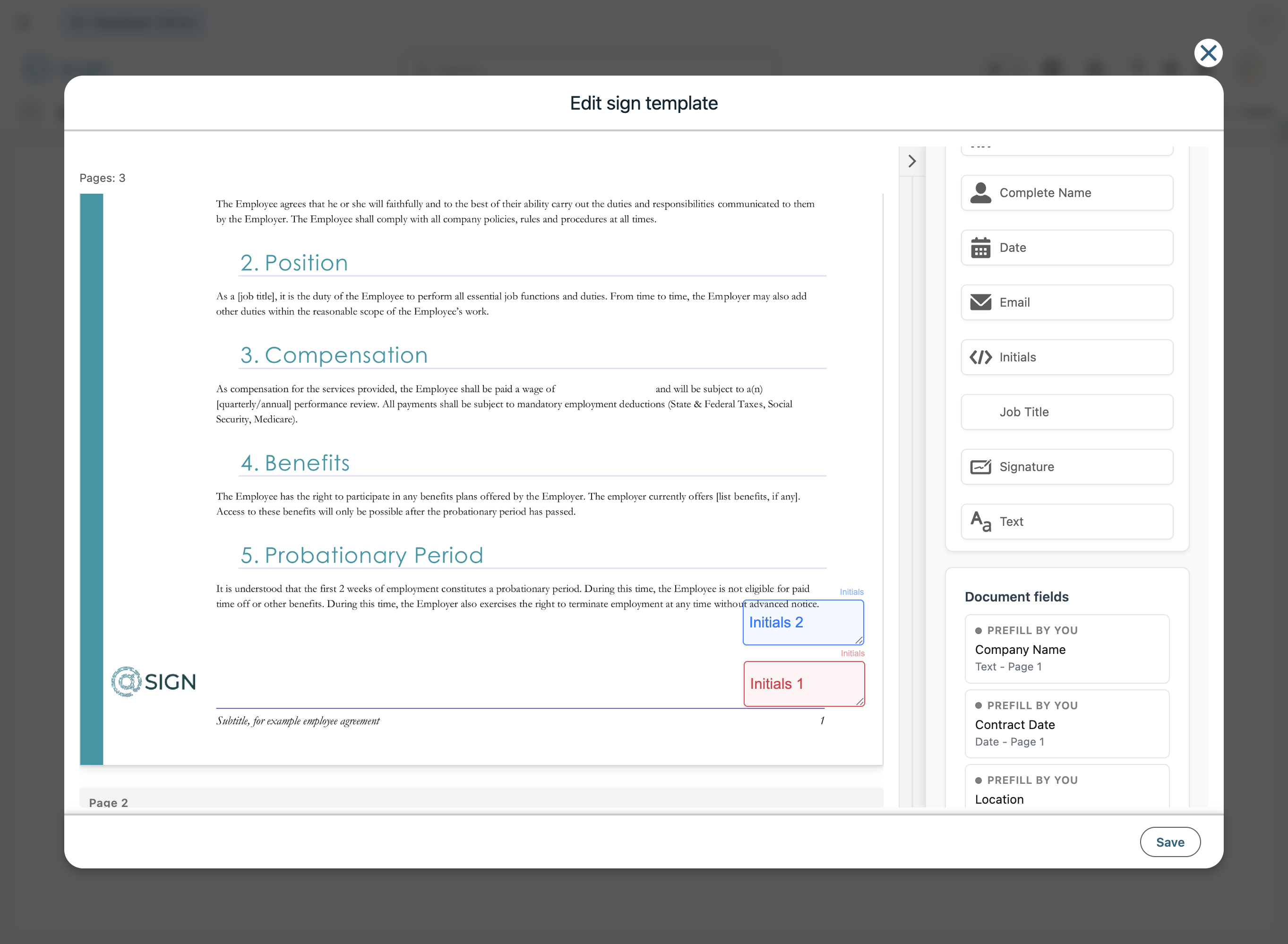
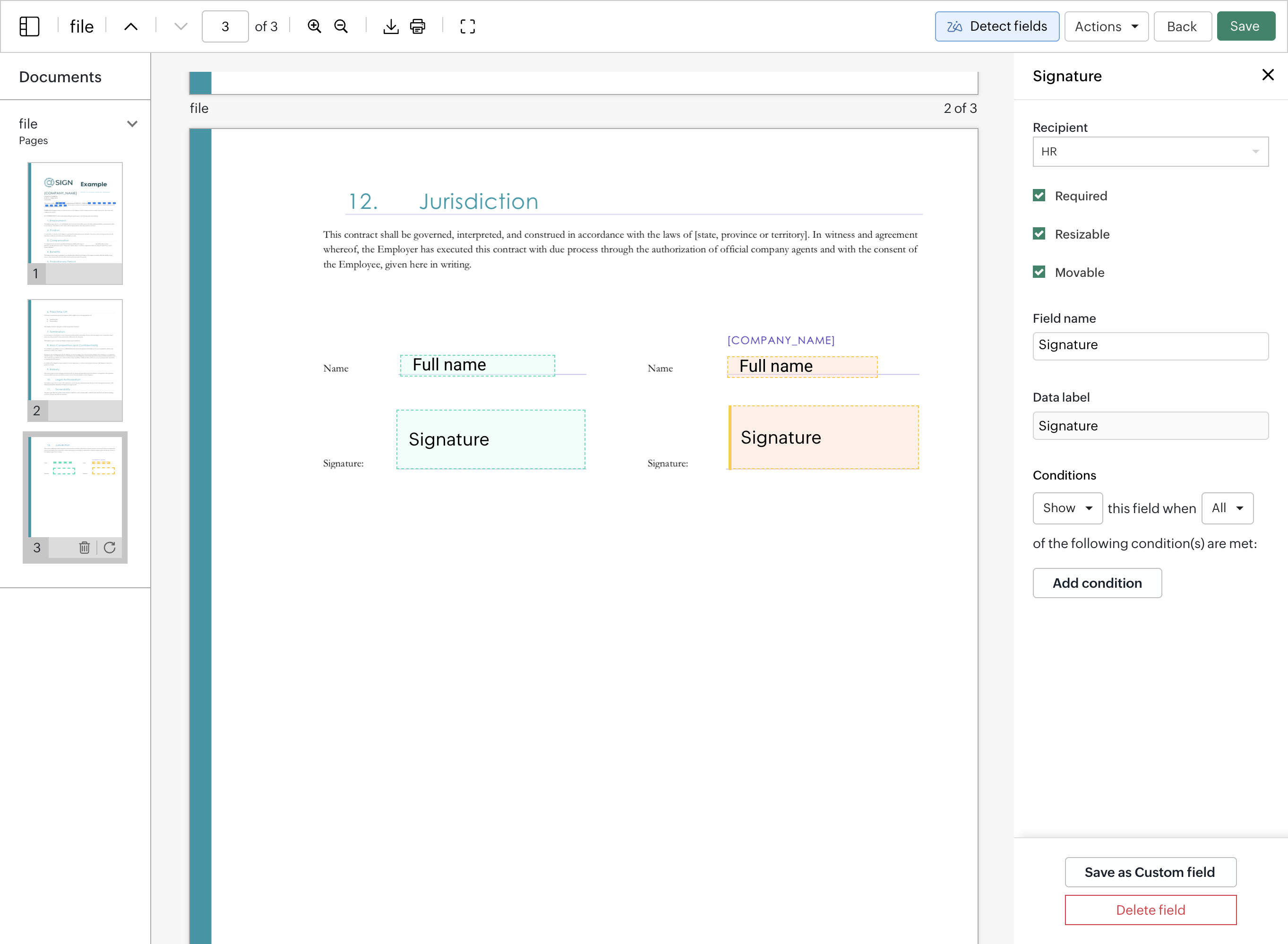
Scroll to the signature section of the document and drag the signature fields into position for each signing role.
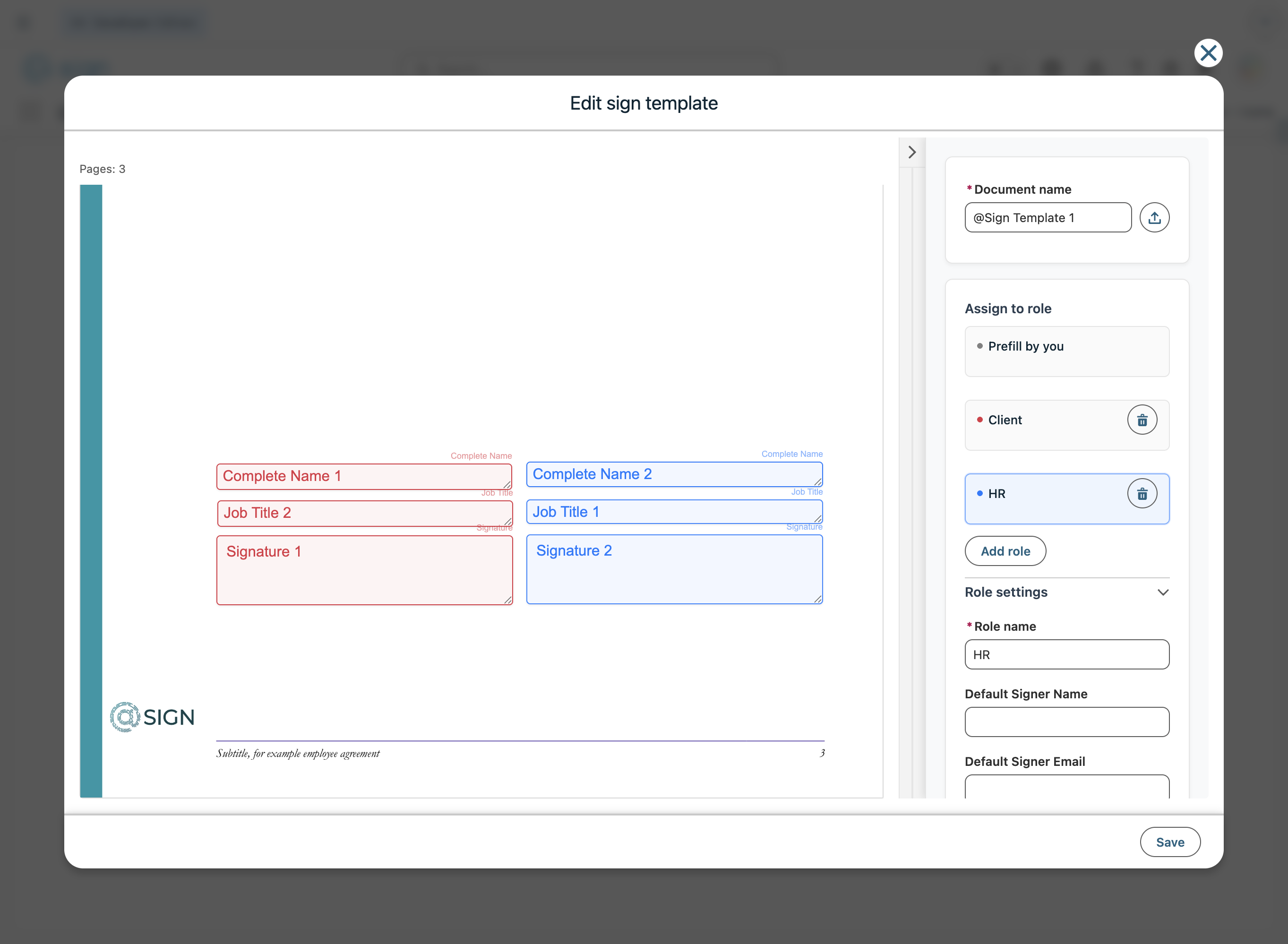
Zoho Sign Template Editor
Open Zoho Sign in your browser, log in, and navigate to the 'Templates' section.
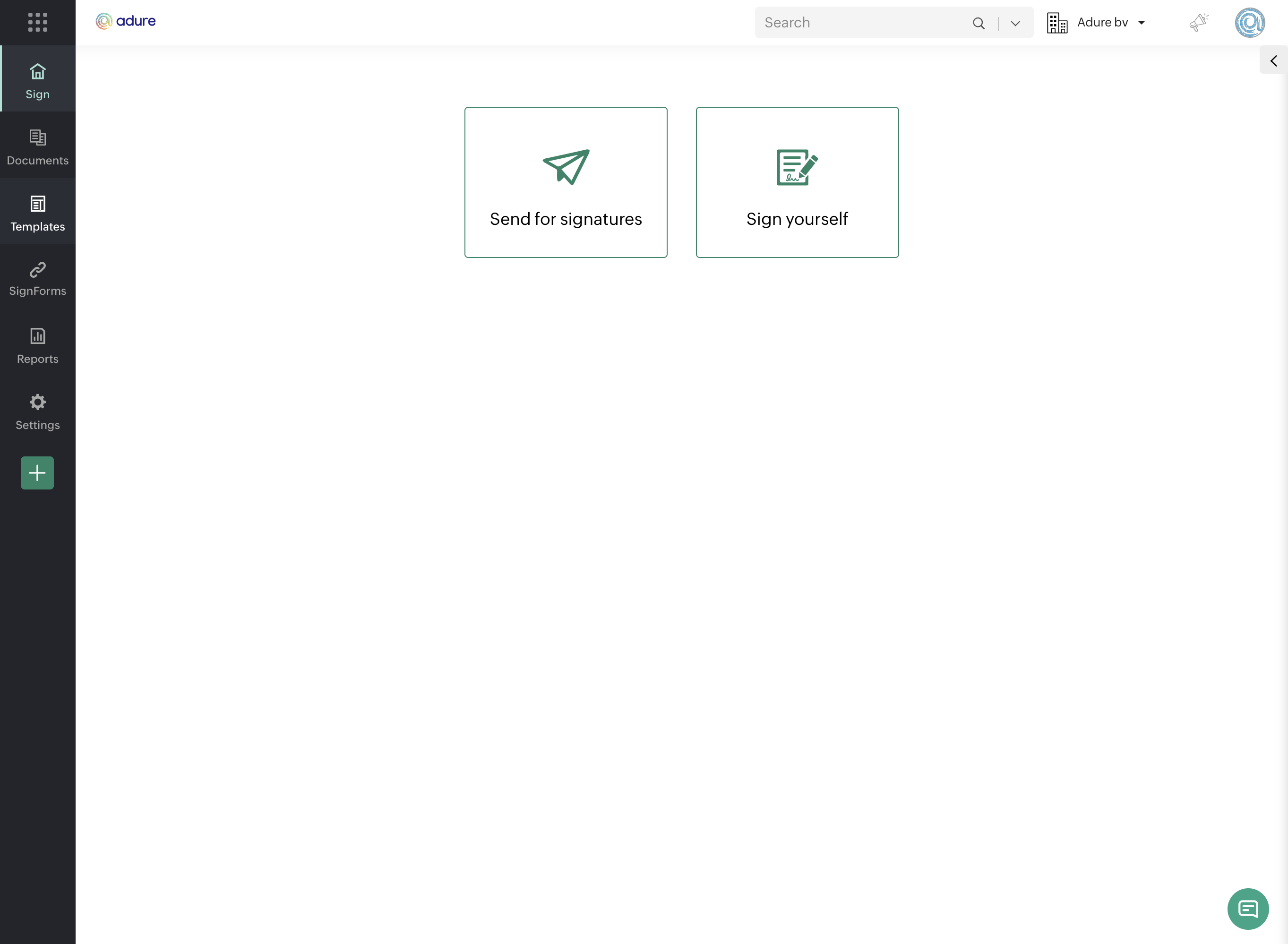
Search for the template you want to update and click 'Edit', or start a new one from scratch.
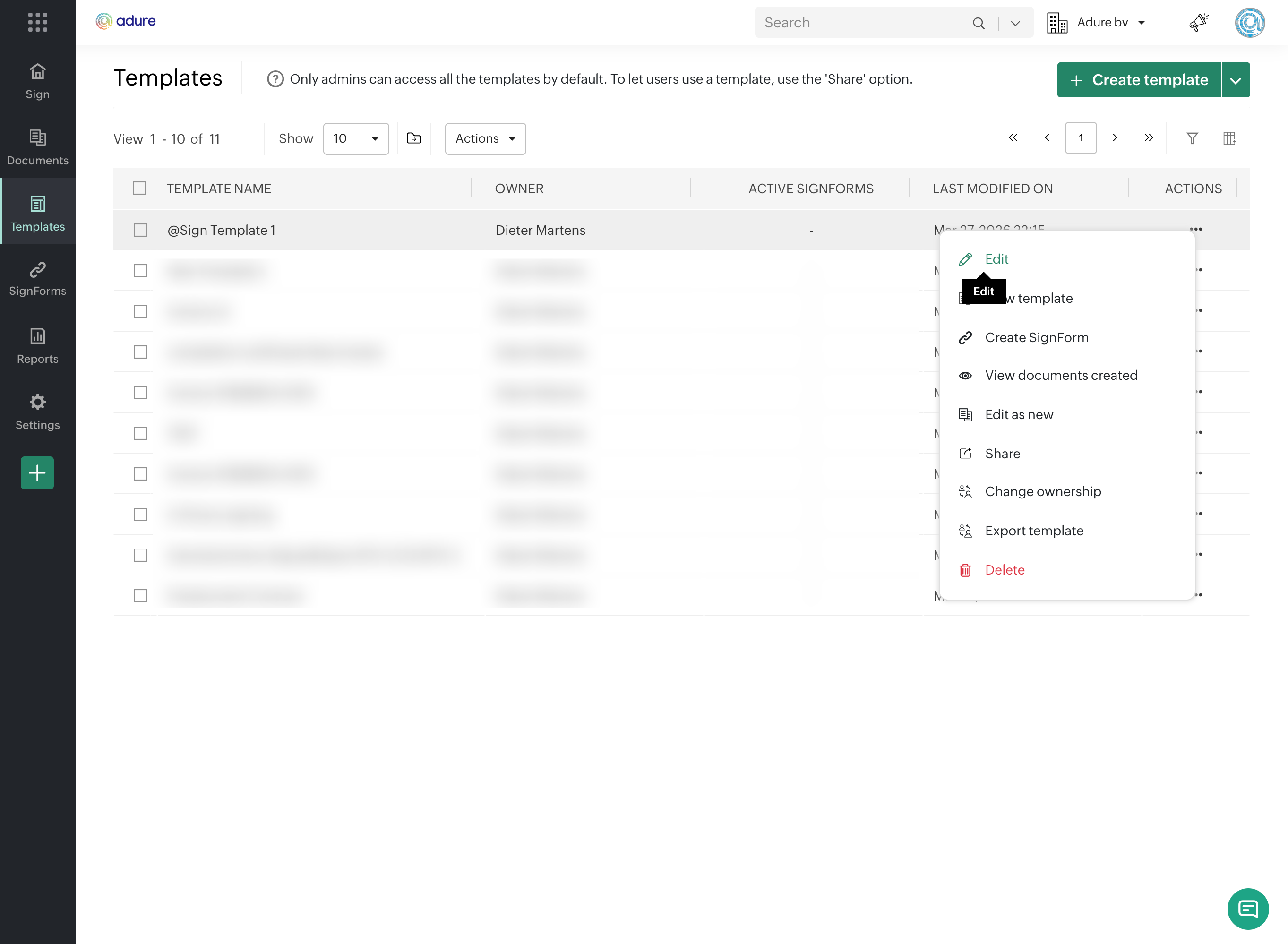
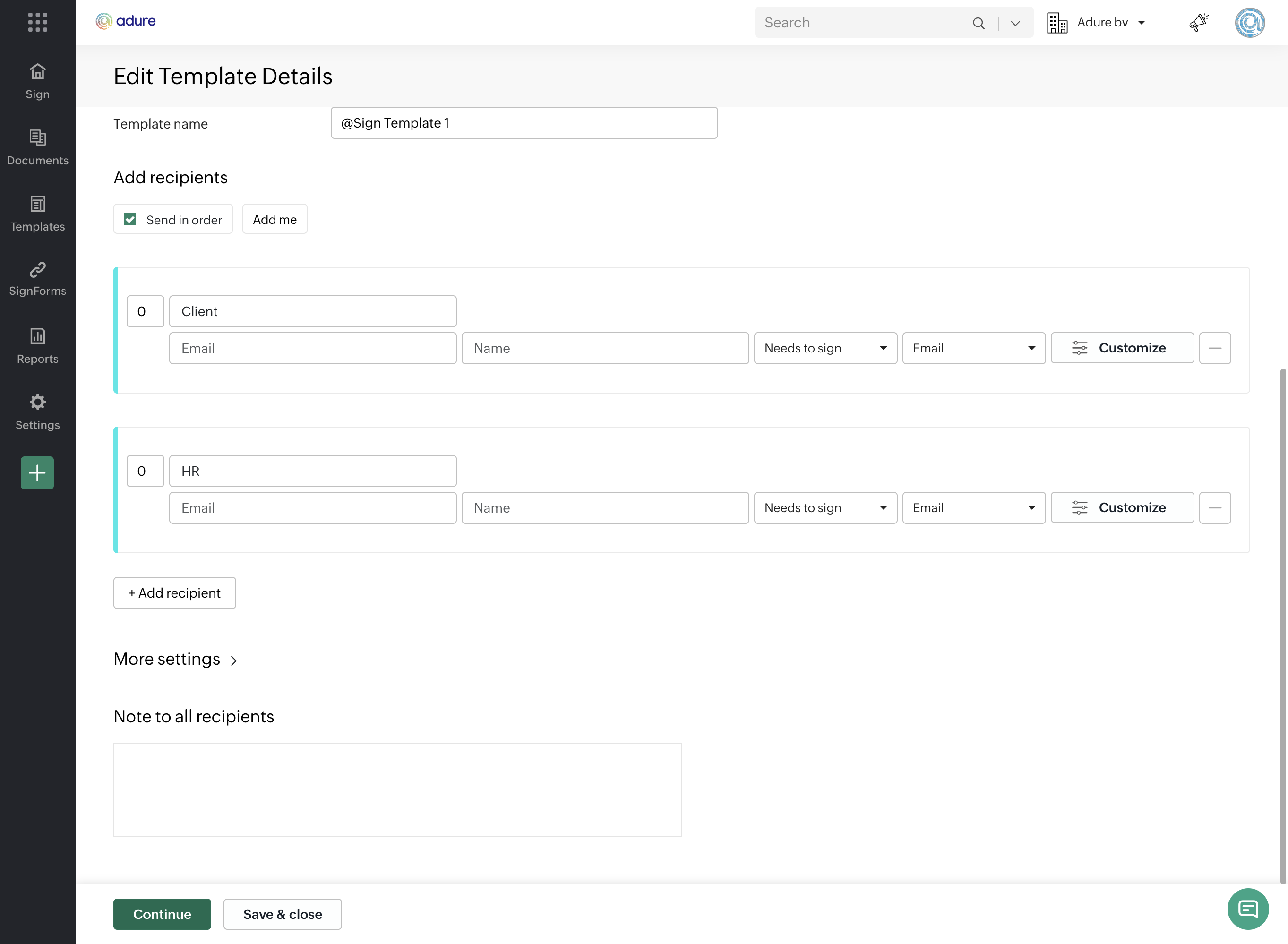
On the first screen, you can add or replace the document and define all the signer roles for this template.
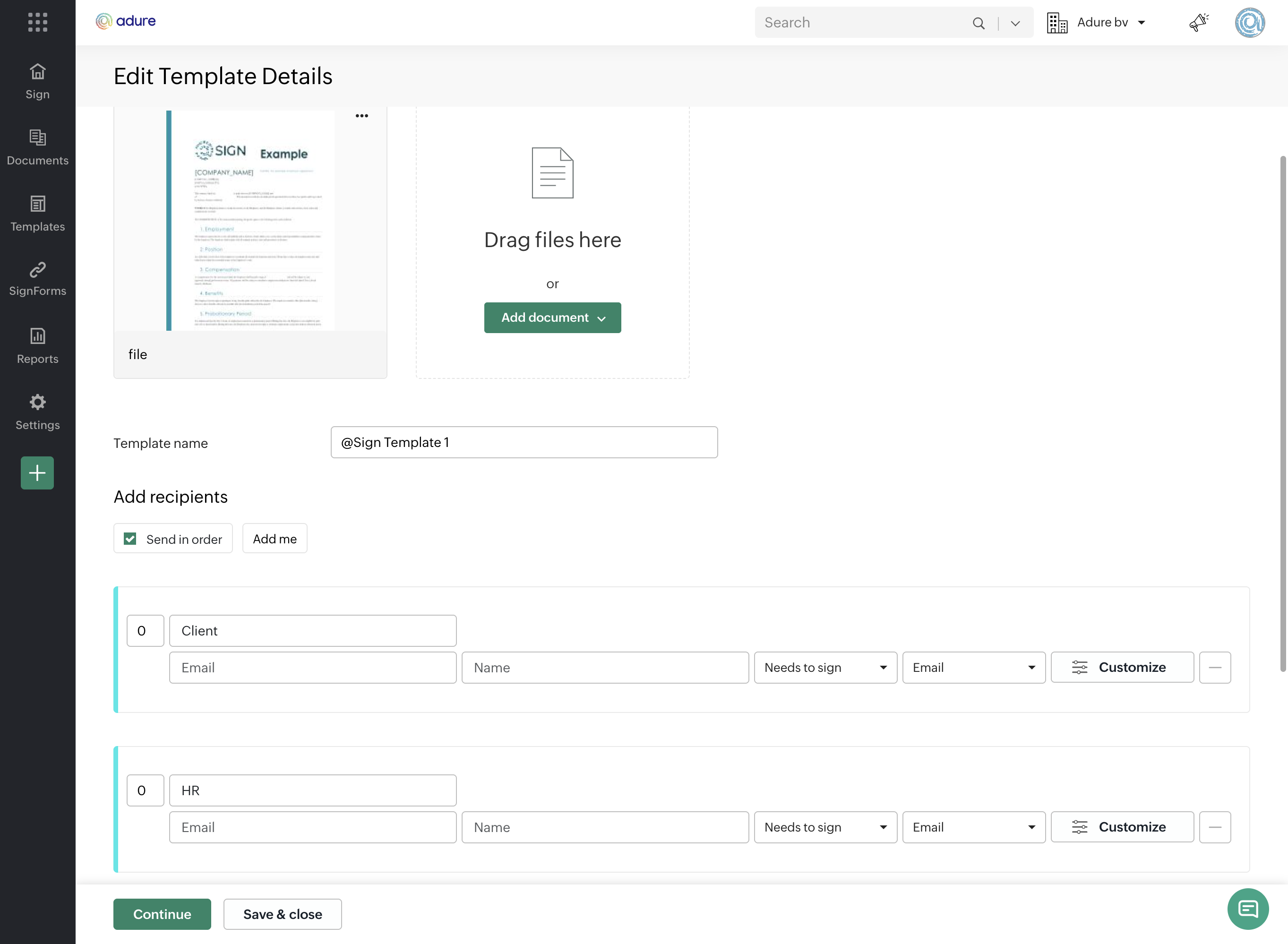
Once your documents and roles are set up, click 'Continue' to move on to placing the fields.
On this screen, assign fields to each signer role — it works the same way as the built-in editor inside Salesforce.
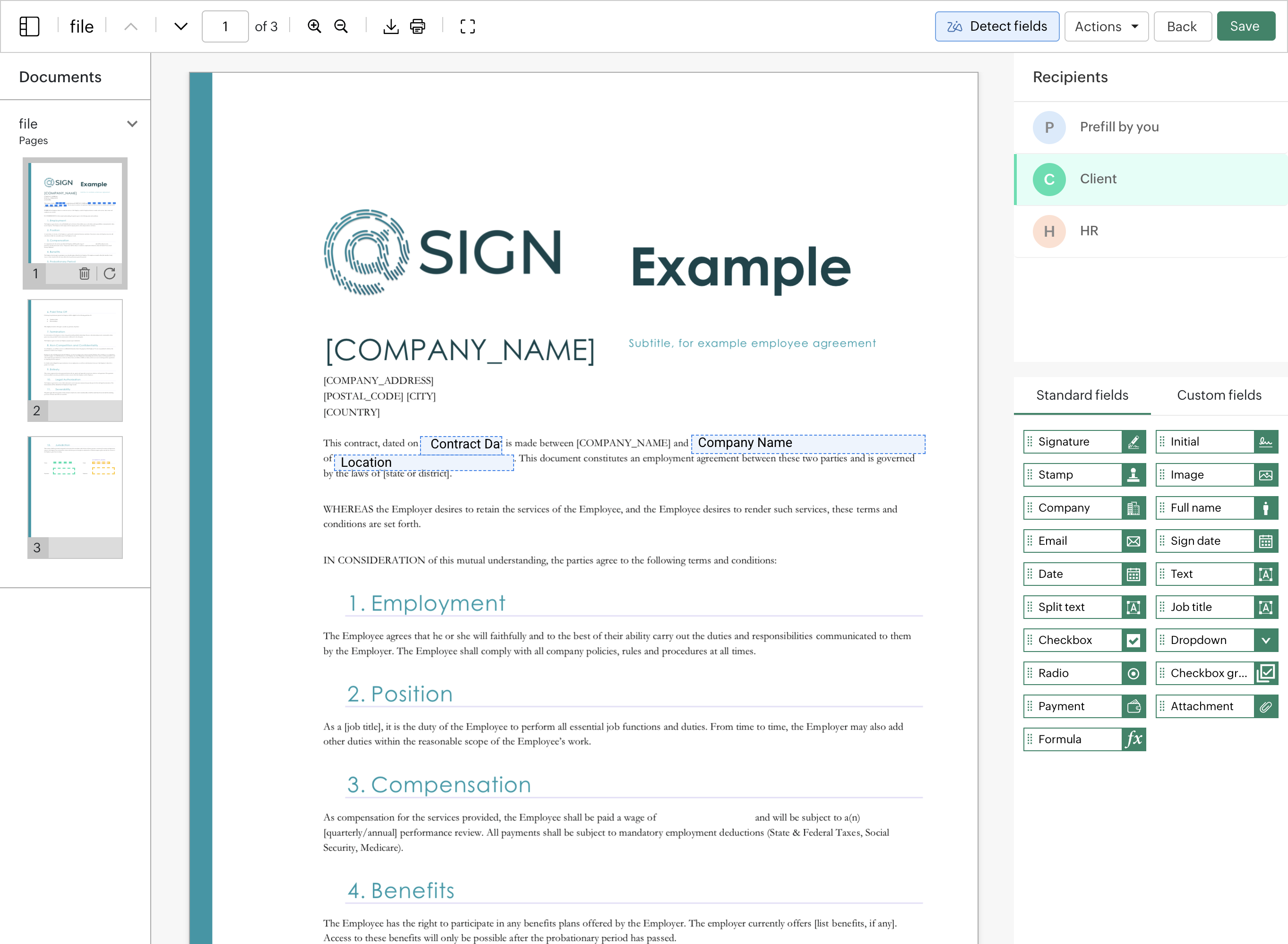
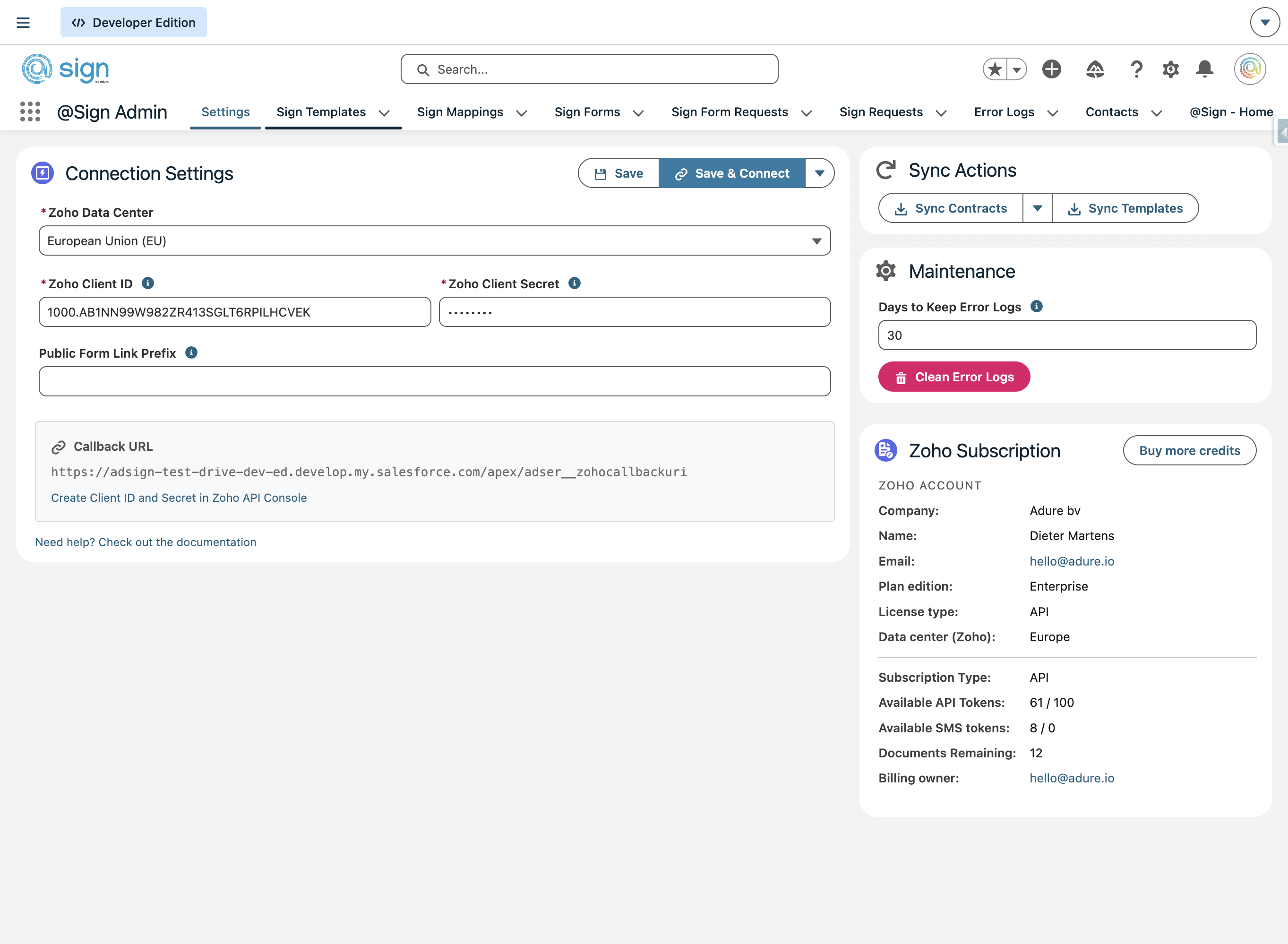
Save the template. It will automatically sync back into @Sign within 15 minutes, or immediately if you trigger a manual sync.